Table Editor
The Table Editor shows rows in a tabular format with configurable columns, filtering, sorting, and search.
Column Configuration
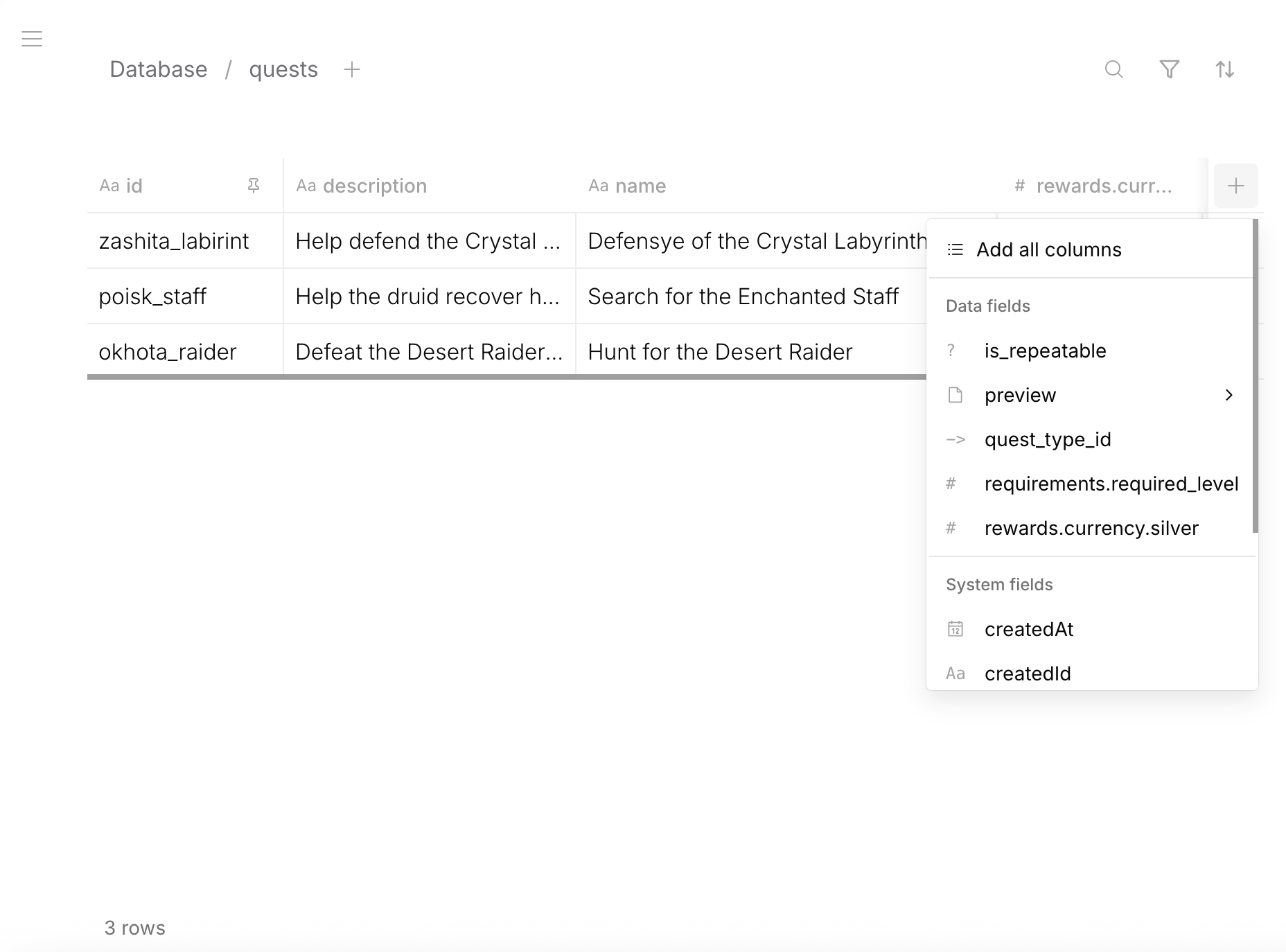
Add, reorder, and configure columns — including nested field paths (e.g., rewards.currency.silver):
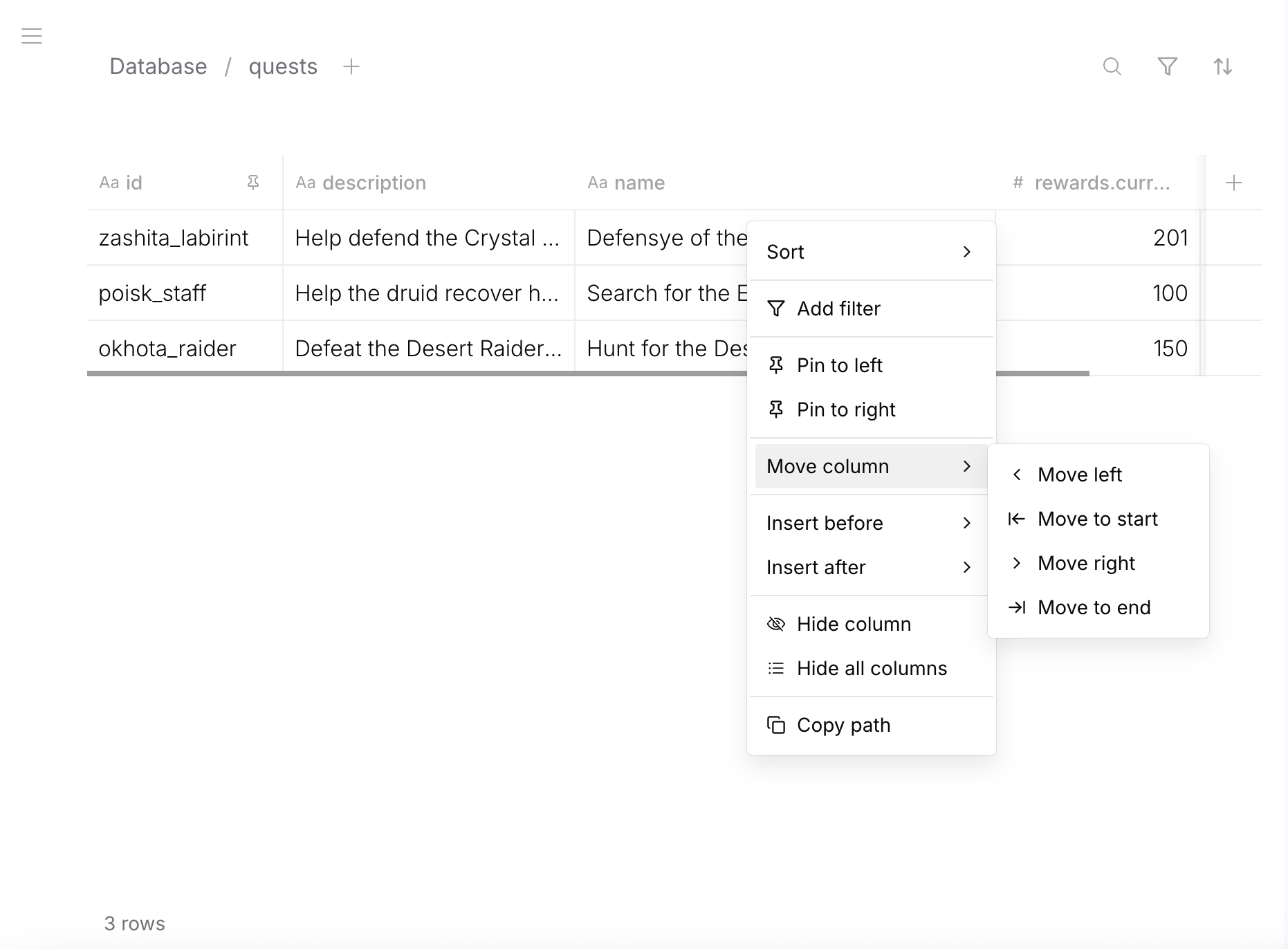
Right-click a column header for sort, filter, pin, move, hide, and copy path:
Views
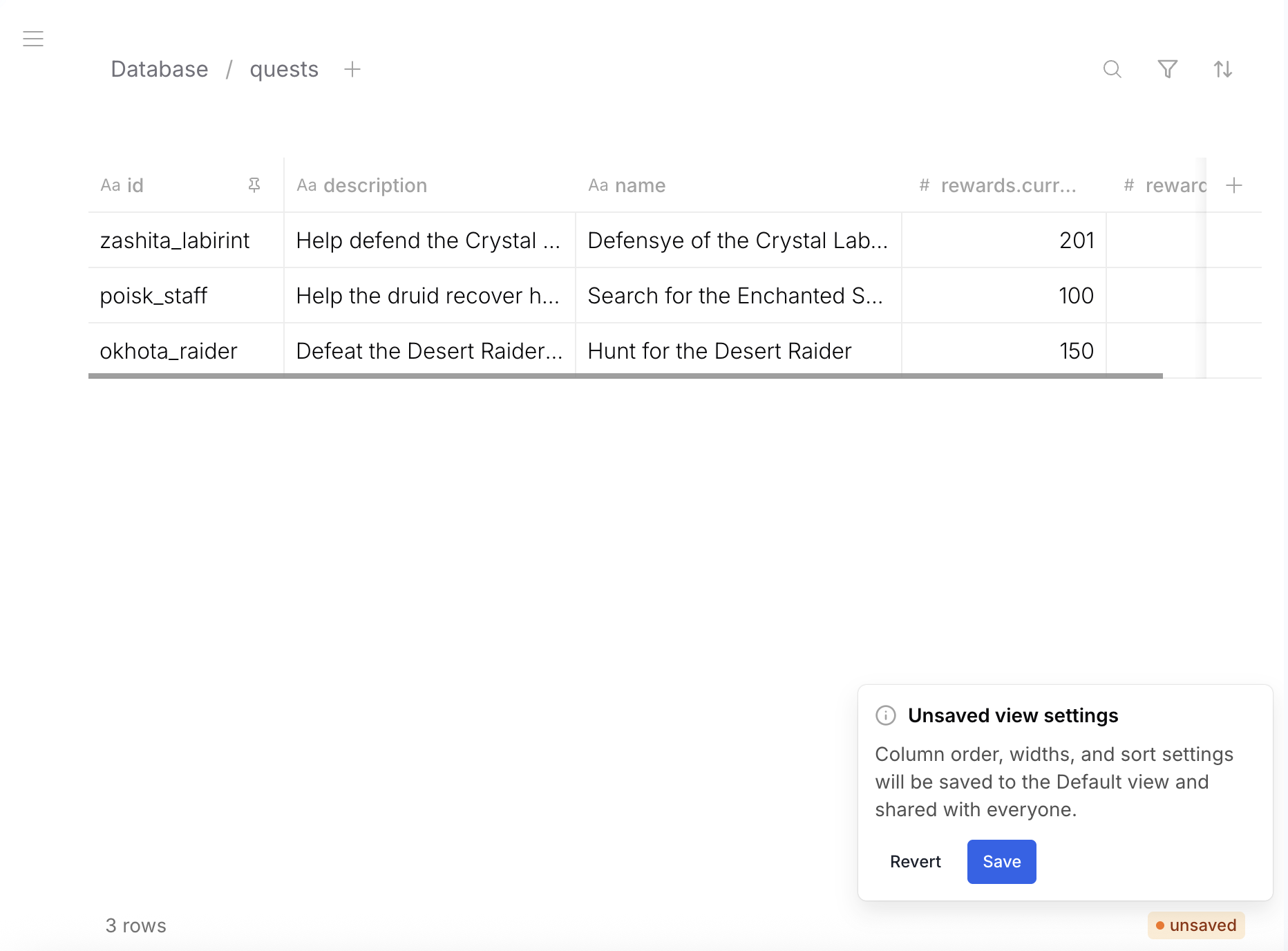
Save column order, widths, and sort settings to the default view — shared with everyone:
Filtering
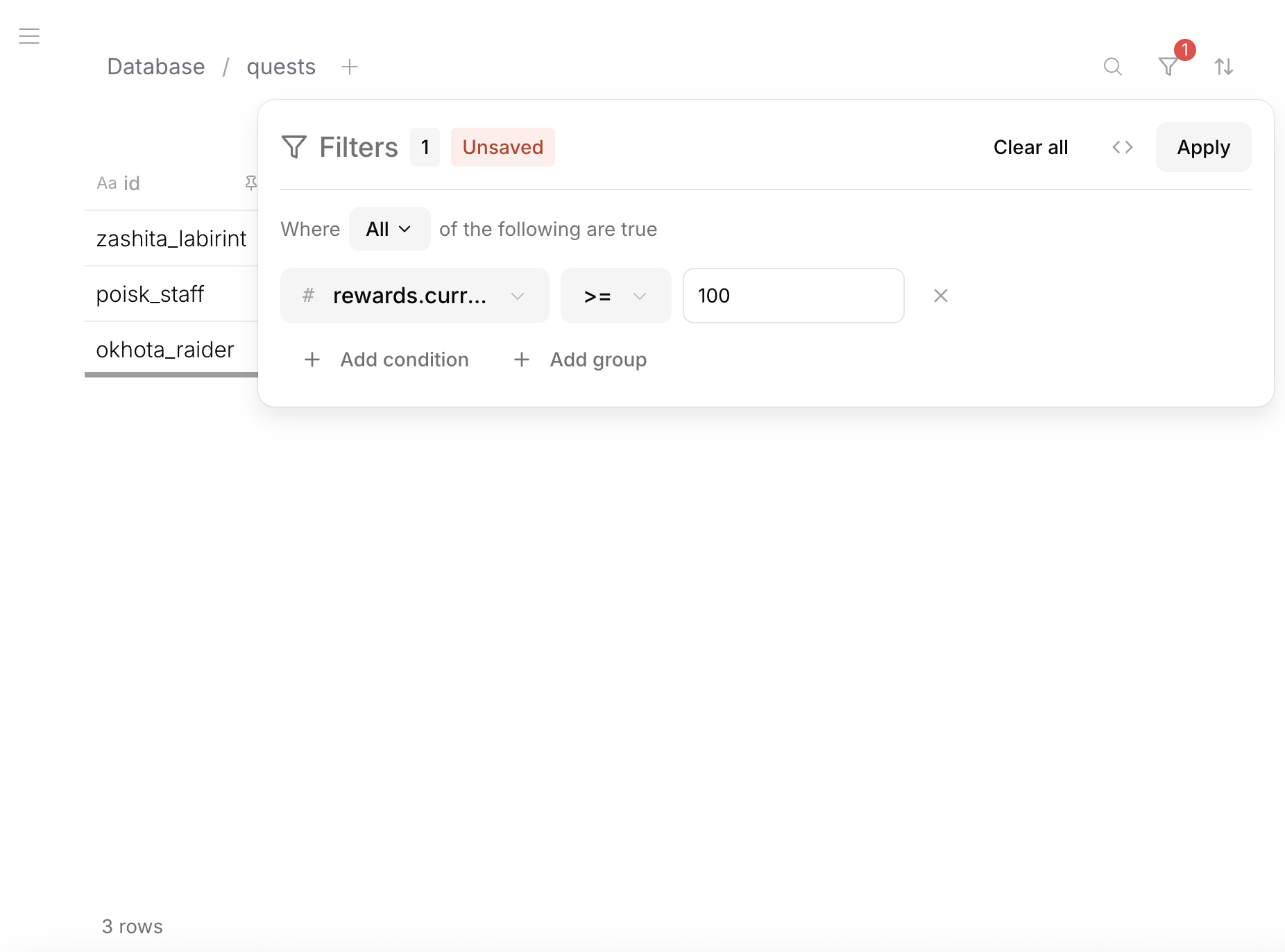
Apply filters from the filter bar — select a field, choose an operator, enter a value. Combine multiple conditions with AND/OR logic.
Filters match the same operators available in the query API.
Sorting
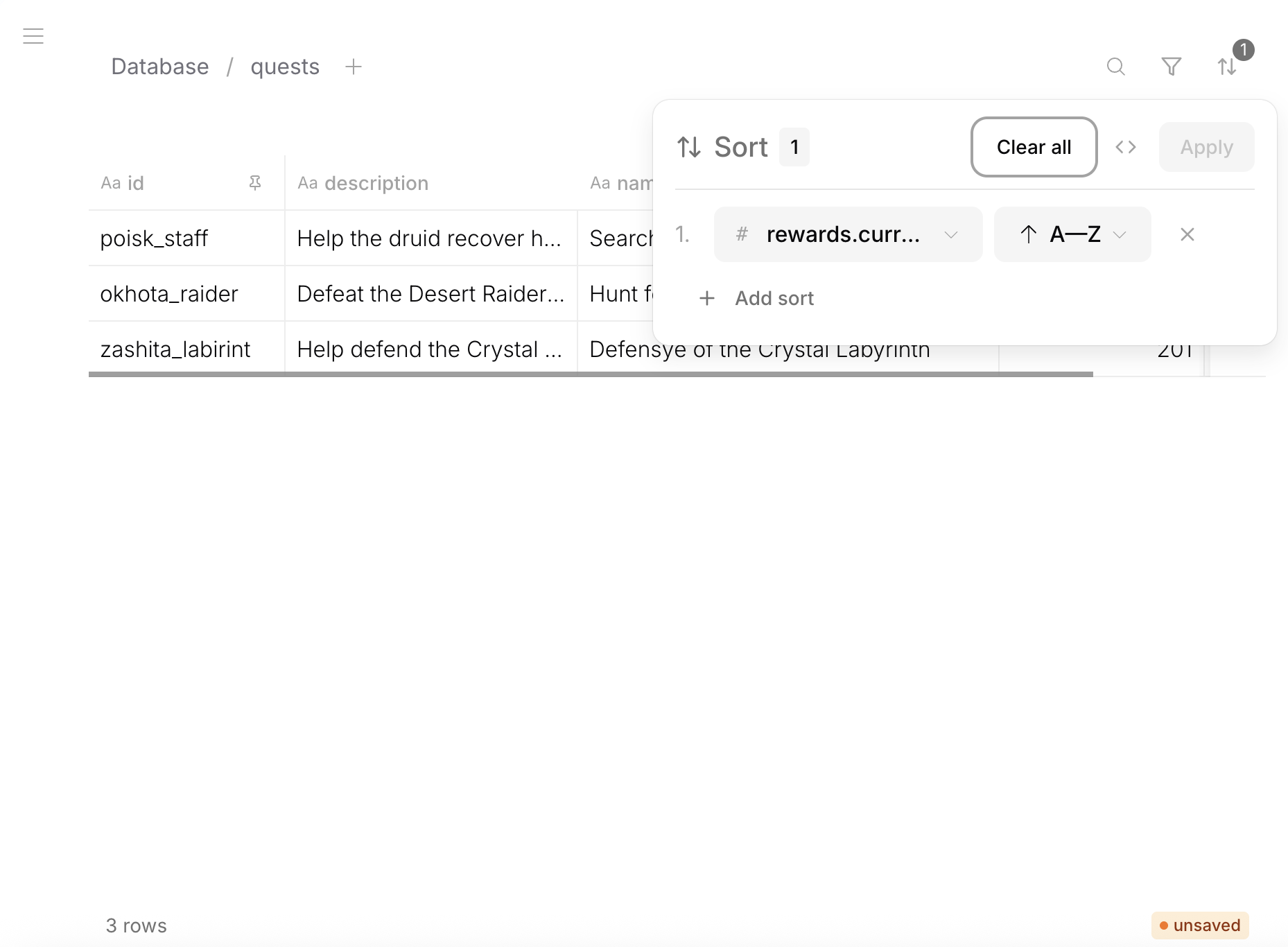
Sort by any column — including nested data fields. Add multiple sort levels.
Search
Full-text search across all visible columns. Type in the search bar to filter rows by content.
Row Actions
- Click a row to open it in the Row Editor
- Create new rows with + button
- Delete rows from the row context menu
Inline Editing
Some field types support inline editing directly in the table cells without opening the Row Editor.