Row Editor
The Row Editor provides form-based and JSON editing for individual records. Click any row in the Table Editor to open it.
Form View
Fields are rendered as interactive controls based on their schema type. Nested objects and arrays expand inline with full depth navigation:
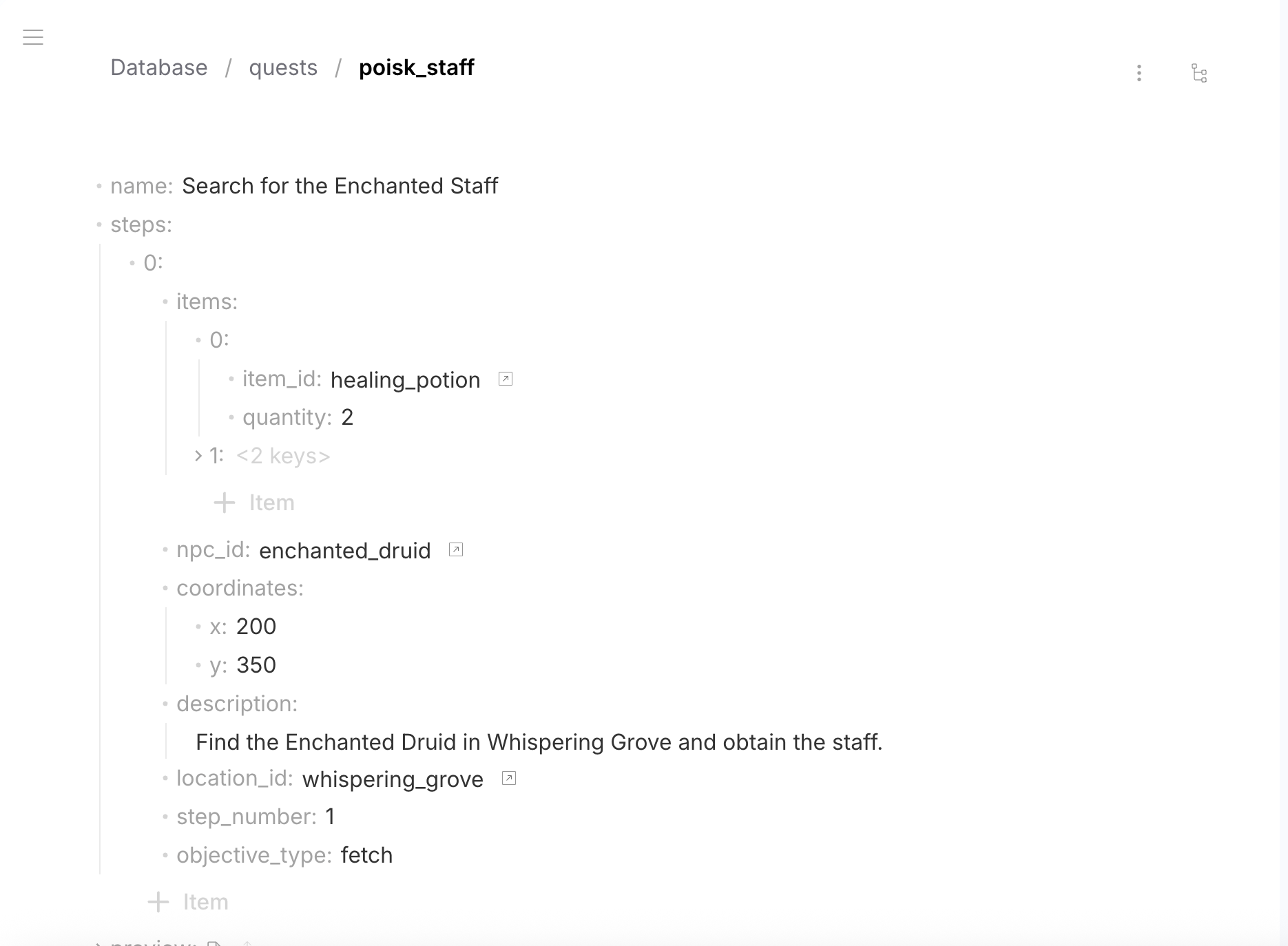
| Schema type | Form control |
|---|---|
| String | Text input (or textarea for long text) |
| String (markdown) | Markdown editor |
| Number | Number input |
| Boolean | Toggle switch |
| Object | Expandable nested form |
| Array | List with add/remove/reorder |
| File | File upload with preview |
| FK (string) | Dropdown/search referencing the target table |
JSON View
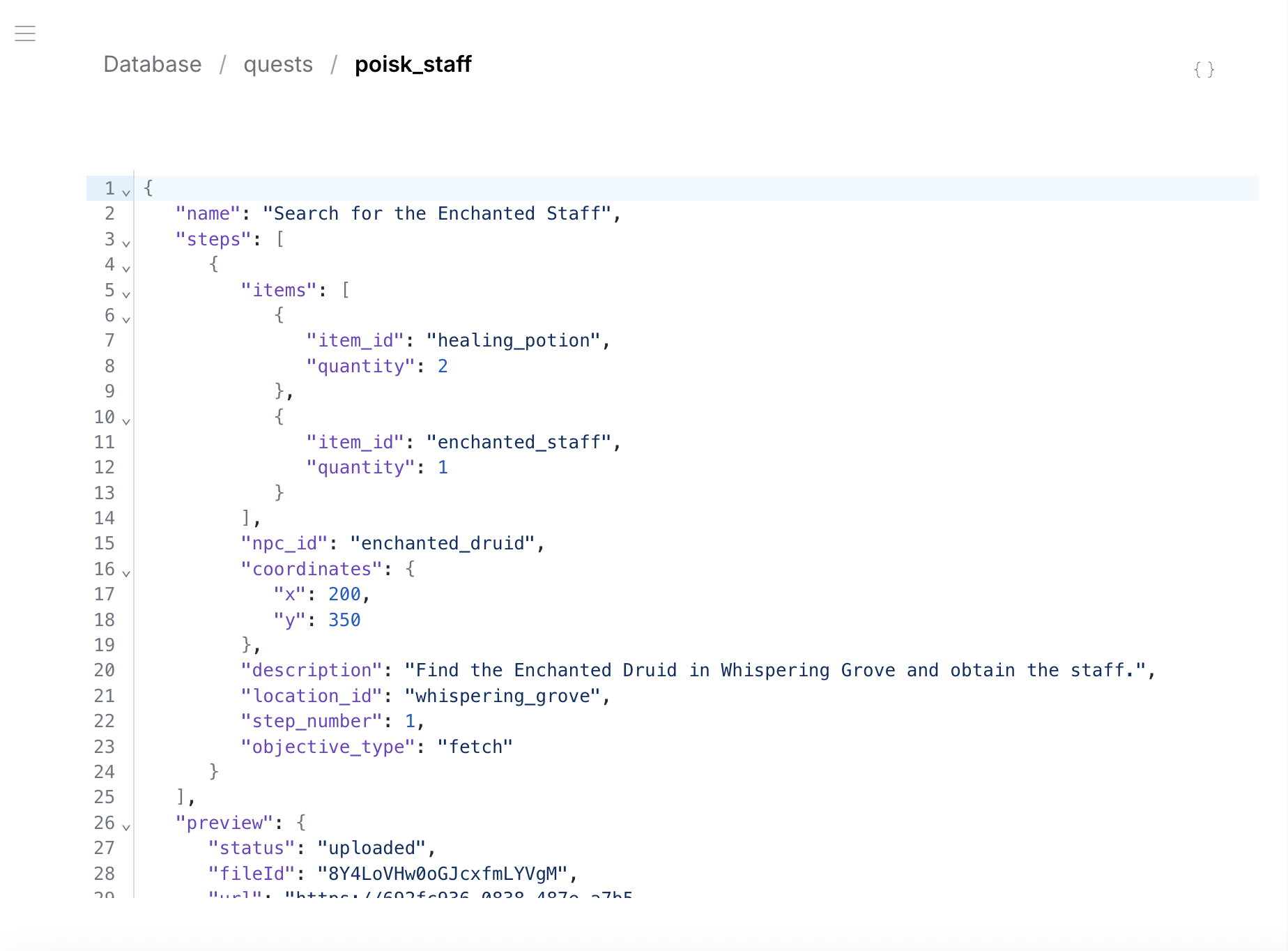
Toggle to JSON view to see and edit the raw JSON data with syntax highlighting:
Foreign Key Navigation
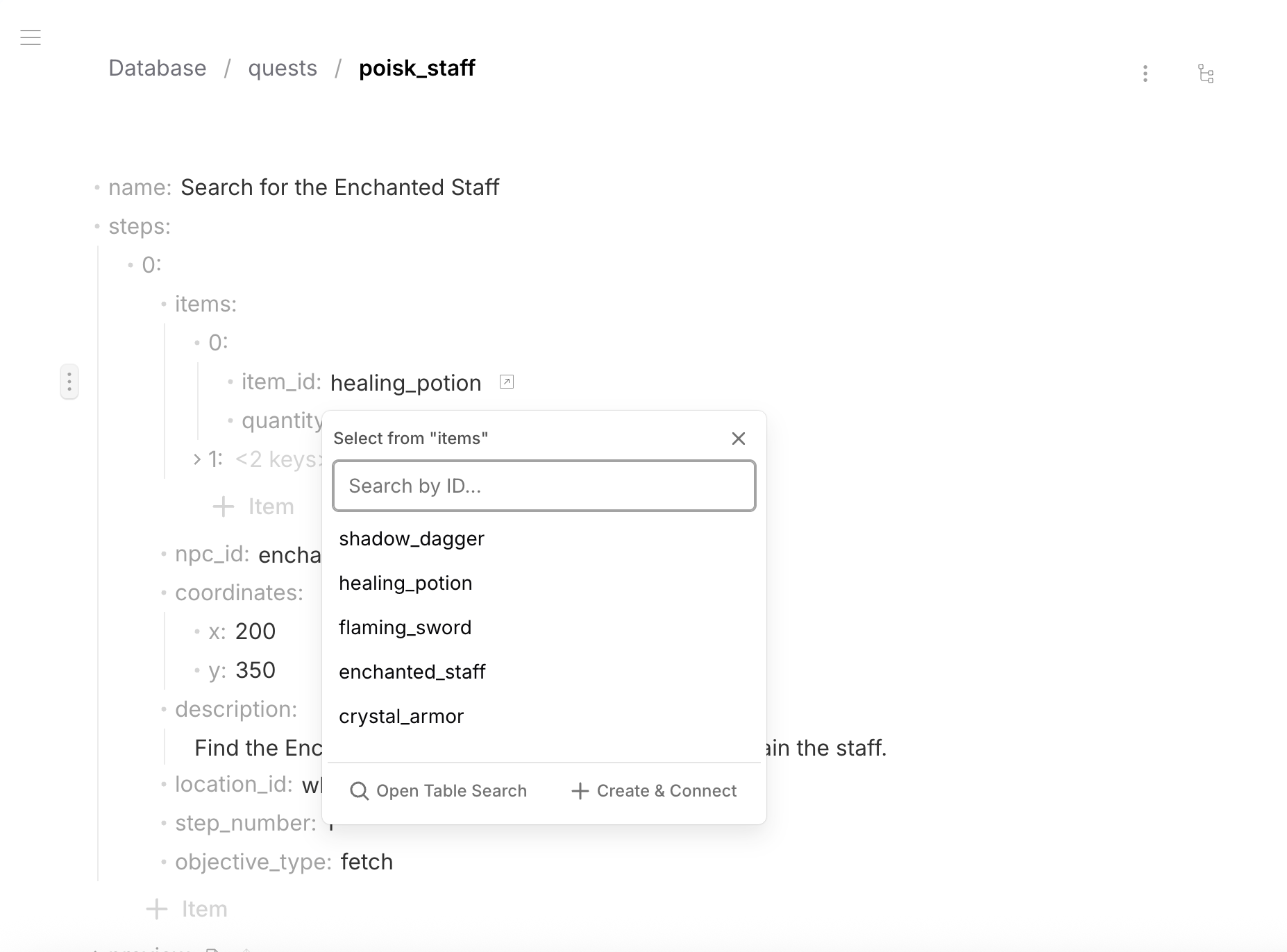
FK fields show an icon linking to the referenced table. Click it to open a dropdown with search, browse the target table, or create a new row and connect it:
File Fields
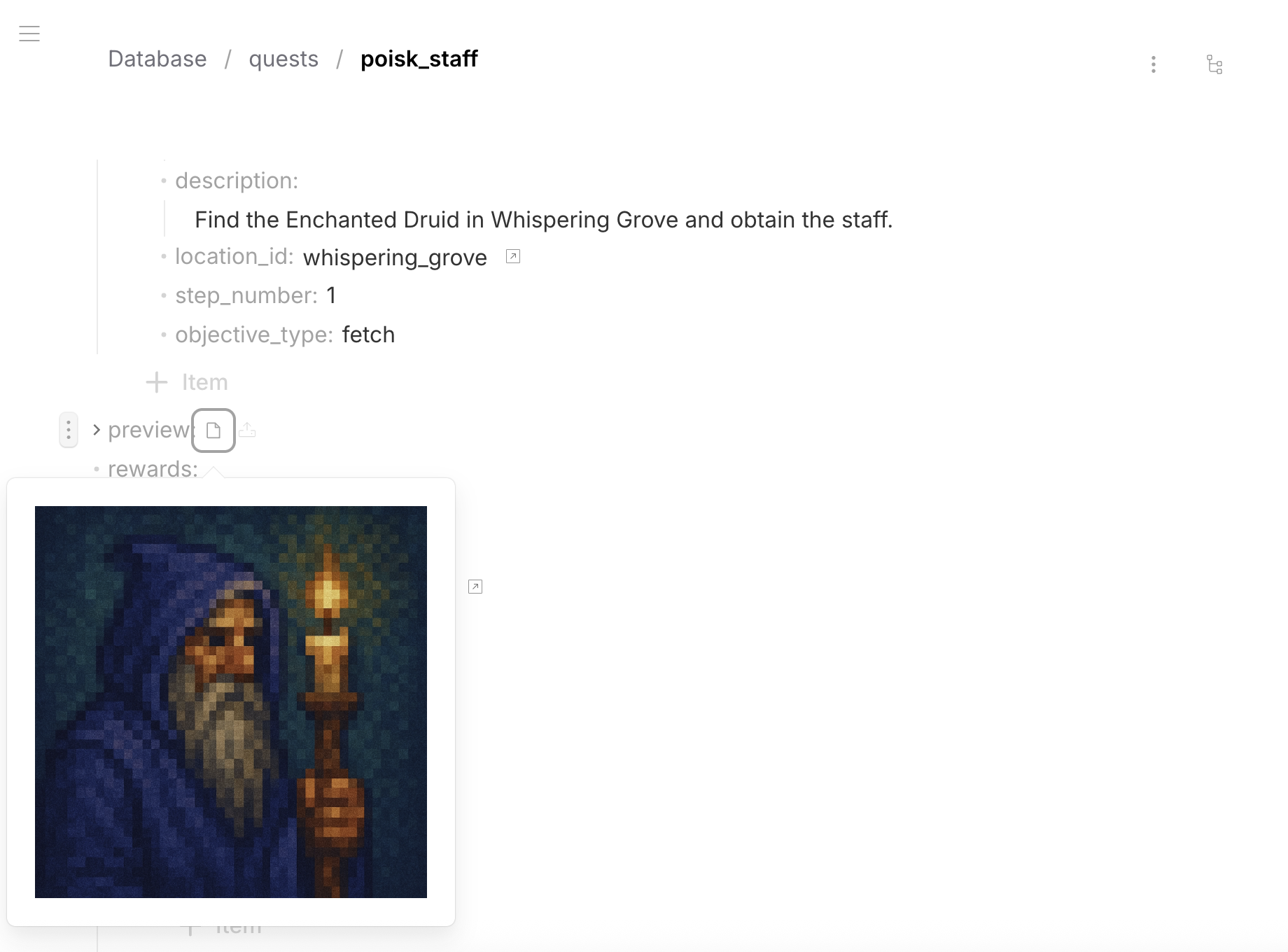
File fields display inline previews for images. Upload files by clicking the file area:
Row ID
Each row has a unique string id within its table. The id is set on creation and can be renamed — all FK references are updated automatically.
Validation
The form validates data against the JSON Schema in real time. Invalid values are highlighted with error messages. The row cannot be saved until all validation errors are resolved.