API Keys
API Keys provide programmatic access to Revisium without user sessions. Use them for local development, external integrations, CI/CD pipelines, and automated workflows.
Key Types
Personal Keys (PAT)
Personal Access Tokens act as you. They inherit your permissions — anything you can do in the UI, the key can do via API.
Who can create: Any authenticated user Use case: Local development, CLI access, API exploration, personal scripts, testing Not recommended for: CI/CD pipelines or production integrations (key is tied to your account — if you leave the org or your account is deactivated, the key stops working)
Service Keys
Service Keys are standalone identities not tied to any user. They have their own configurable permissions and survive team changes.
Who can create: Organization admins (for their org) Use case: CI/CD pipelines, production integrations, external apps, webhooks, automated deployments Why not PAT: Service keys don't break when team members leave. They belong to the organization, not a person.
Creating API Keys
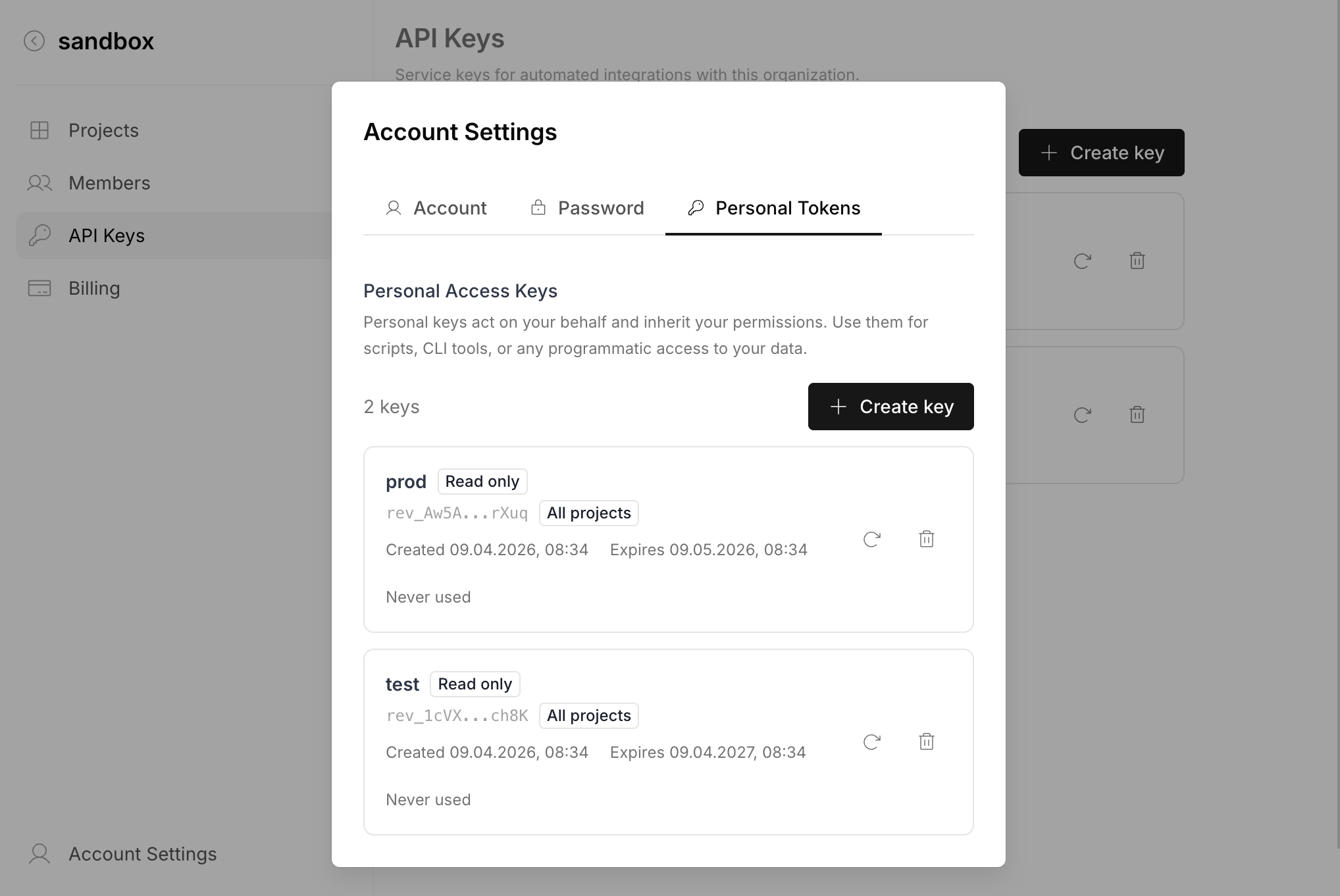
Personal Key (via Admin UI)
- Go to Account Settings > Personal Tokens tab
- Click "Create key"
- Enter a name and configure scope (optional)
- Copy the key immediately — it won't be shown again
Personal Key (via GraphQL)
# Minimal — broad access, default expiration (90 days)
mutation {
  createPersonalApiKey(data: {
    name: "Local dev"
  }) {
    secret
    apiKey { id prefix expiresAt }
  }
}

# Scoped — read-only access to a specific org and project
mutation {
  createPersonalApiKey(data: {
    name: "Dashboard read-only"
    organizationId: "myorg"
    projectIds: ["my-project"]
    branchNames: ["$default"]
    readOnly: true
    expiresAt: "2026-07-01T00:00:00Z"
  }) {
    secret
    apiKey { id prefix expiresAt }
  }
}
The secret field contains the full key (e.g., rev_V1StGXR8_Z5jdHi6B-myT). It is only returned at creation — store it securely.
Service Key (via Admin UI)
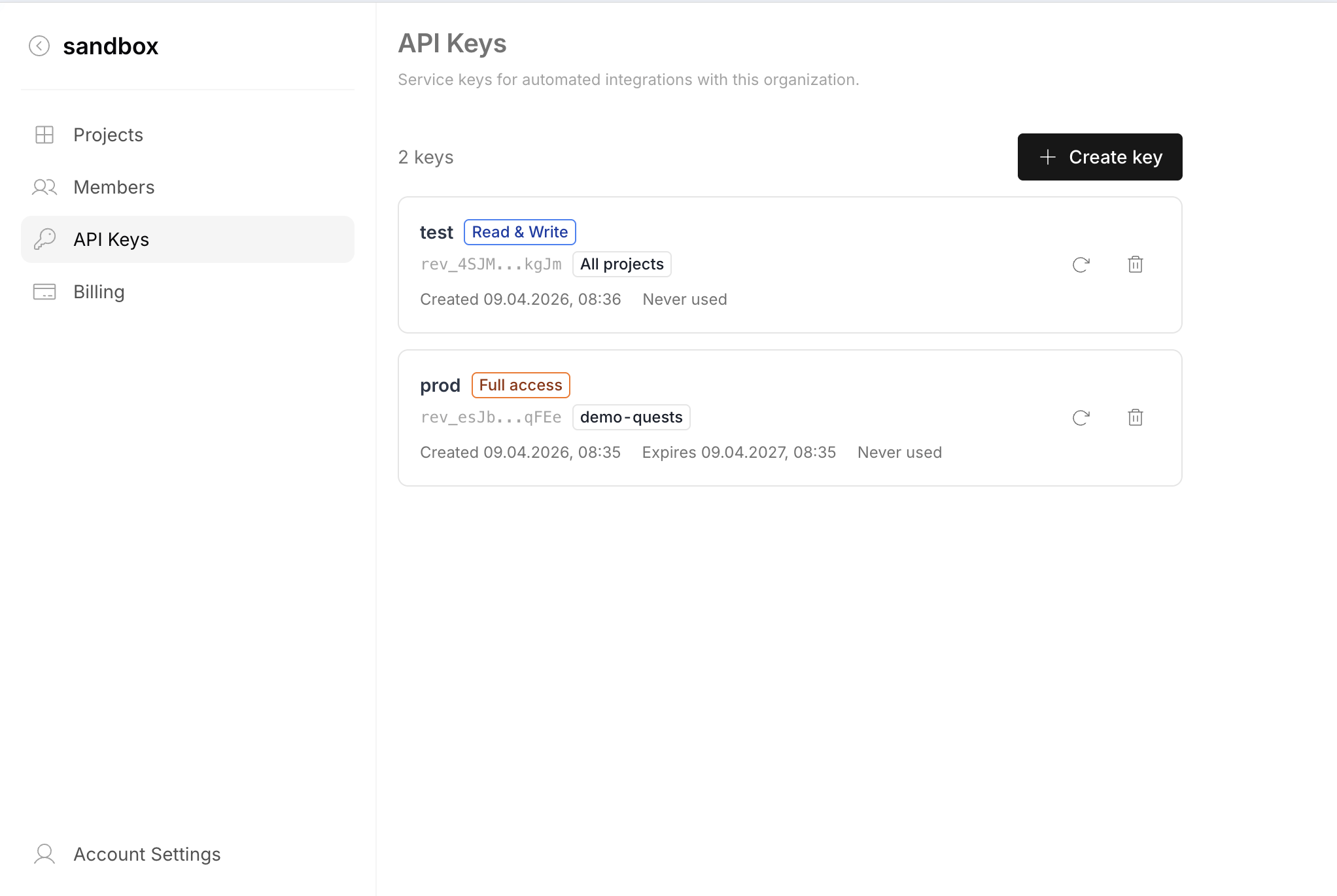
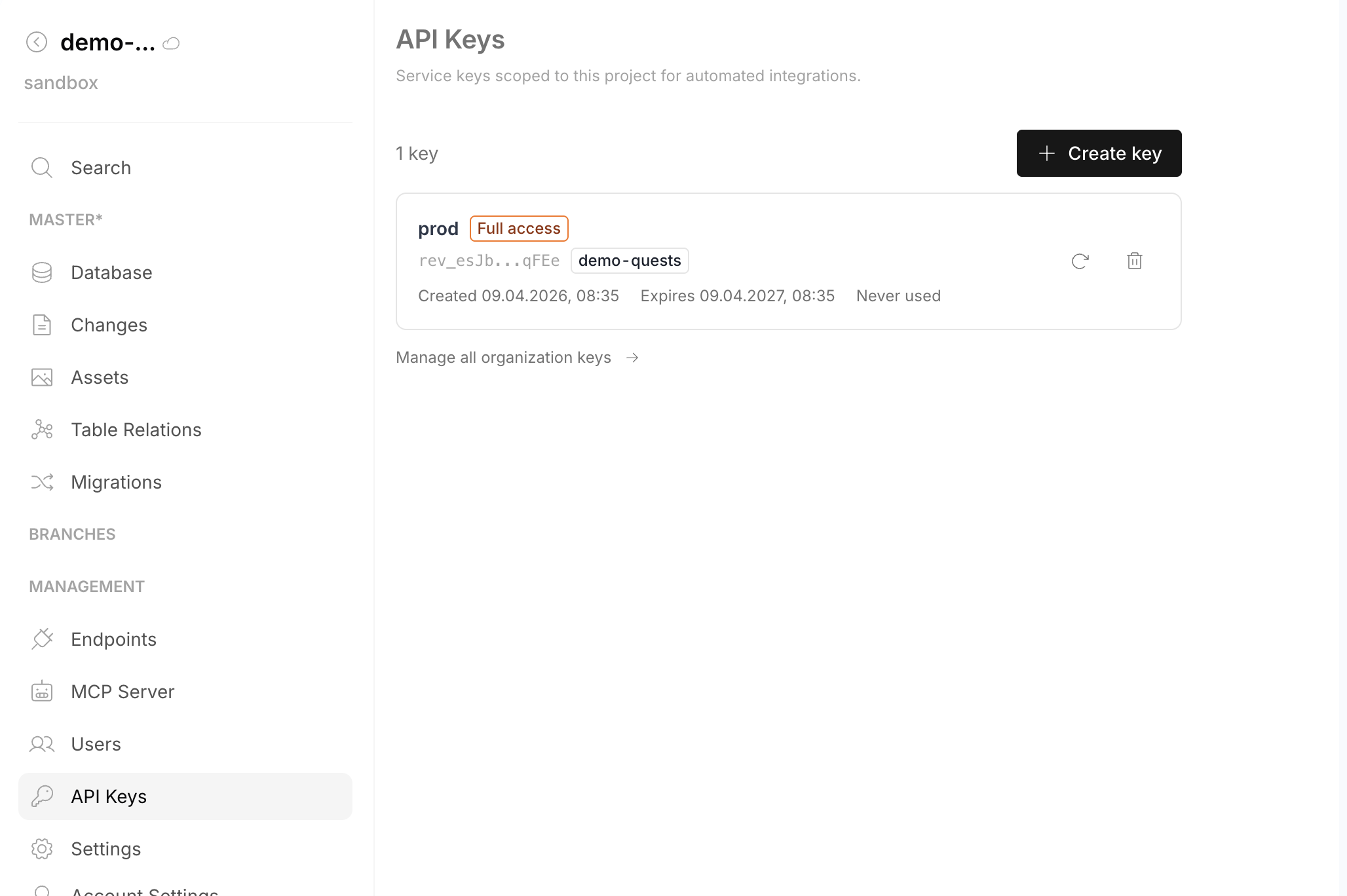
Service keys can be managed from two places:
- Organization level — Organization Settings > API Keys. Shows all service keys for the org.
- Project level — Project sidebar > Management > API Keys. Shows only keys scoped to that project, with a link to manage all organization keys.
- Go to either API Keys page
- Click "Create key"
- Configure name, scope, and permission level
- Copy the key immediately
Service Key (via GraphQL)
mutation {
  createServiceApiKey(data: {
    name: "External CRM Integration"
    organizationId: "myorg"
    permissions: {
      rules: [
        { action: "read", subject: ["Project", "Branch", "Table", "Row"] },
        { action: ["create", "update"], subject: "Row" }
      ]
    }
    projectIds: ["my-project"]
    branchNames: ["$default"]
    readOnly: false
    expiresAt: "2027-01-01T00:00:00Z"
  }) {
    secret
    apiKey { id prefix expiresAt }
  }
}
Using API Keys
API Keys work with all Revisium API surfaces. Three authentication methods are supported:
X-Api-Key Header (recommended)
- System REST
- System GraphQL
- Generated REST
- Generated GraphQL
curl http://localhost:8080/api/organization/myorg/project/myproject/branch/master \
  -H "X-Api-Key: rev_xxxxxxxxxxxxxxxxxxxx"
curl -X POST http://localhost:8080/graphql \
  -H "Content-Type: application/json" \
  -H "X-Api-Key: rev_xxxxxxxxxxxxxxxxxxxx" \
  -d '{"query": "{ me { id username } }"}'
curl http://localhost:8080/endpoint/rest/myorg/myproject/master/head/tables/products/rows \
  -H "X-Api-Key: rev_xxxxxxxxxxxxxxxxxxxx"
curl -X POST http://localhost:8080/endpoint/graphql/myorg/myproject/master/head \
  -H "Content-Type: application/json" \
  -H "X-Api-Key: rev_xxxxxxxxxxxxxxxxxxxx" \
  -d '{"query": "{ products { edges { node { id data { title price } } } } }"}'
Authorization: Bearer Header
Same header as JWT, but with the rev_ prefix. The server auto-detects key type by prefix.
curl -X POST http://localhost:8080/graphql \
  -H "Content-Type: application/json" \
  -H "Authorization: Bearer rev_xxxxxxxxxxxxxxxxxxxx" \
  -d '{"query": "{ me { id username } }"}'
Query Parameter (webhooks)
For cases where headers aren't available (e.g., webhook URLs):
https://your-instance/api/...?api_key=rev_xxxxxxxxxxxxxxxxxxxx
Query params may appear in server logs. Use header auth when possible.
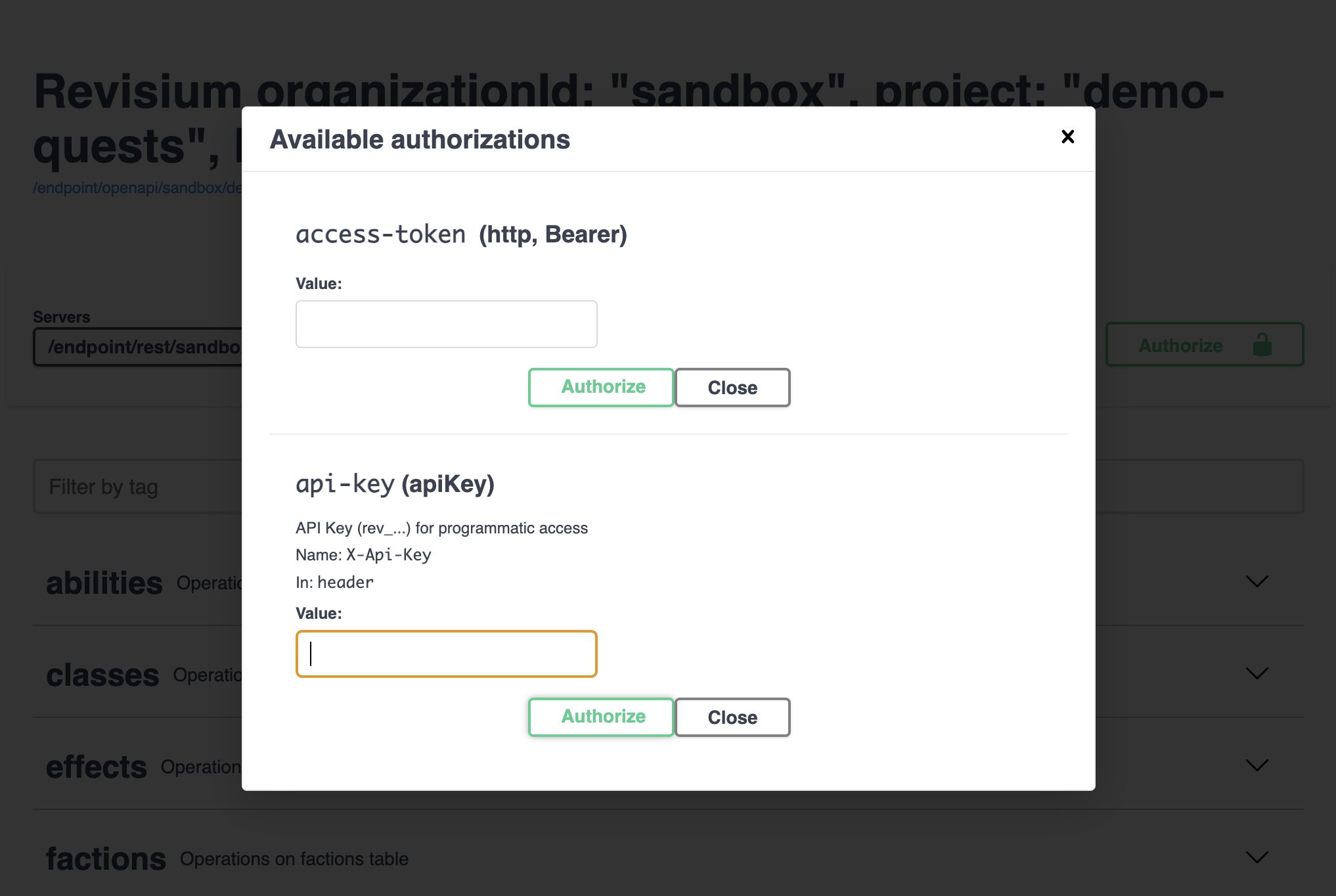
Using with Swagger UI
- Open Swagger UI at
/api - Click "Authorize" button (top right)
- You'll see two options:
- access-token (http, Bearer) — for JWT
- api-key (apiKey, header: X-Api-Key) — for API keys
- Choose "api-key", paste your
rev_...key - Click "Authorize"
All "Try it out" requests will include your key automatically.
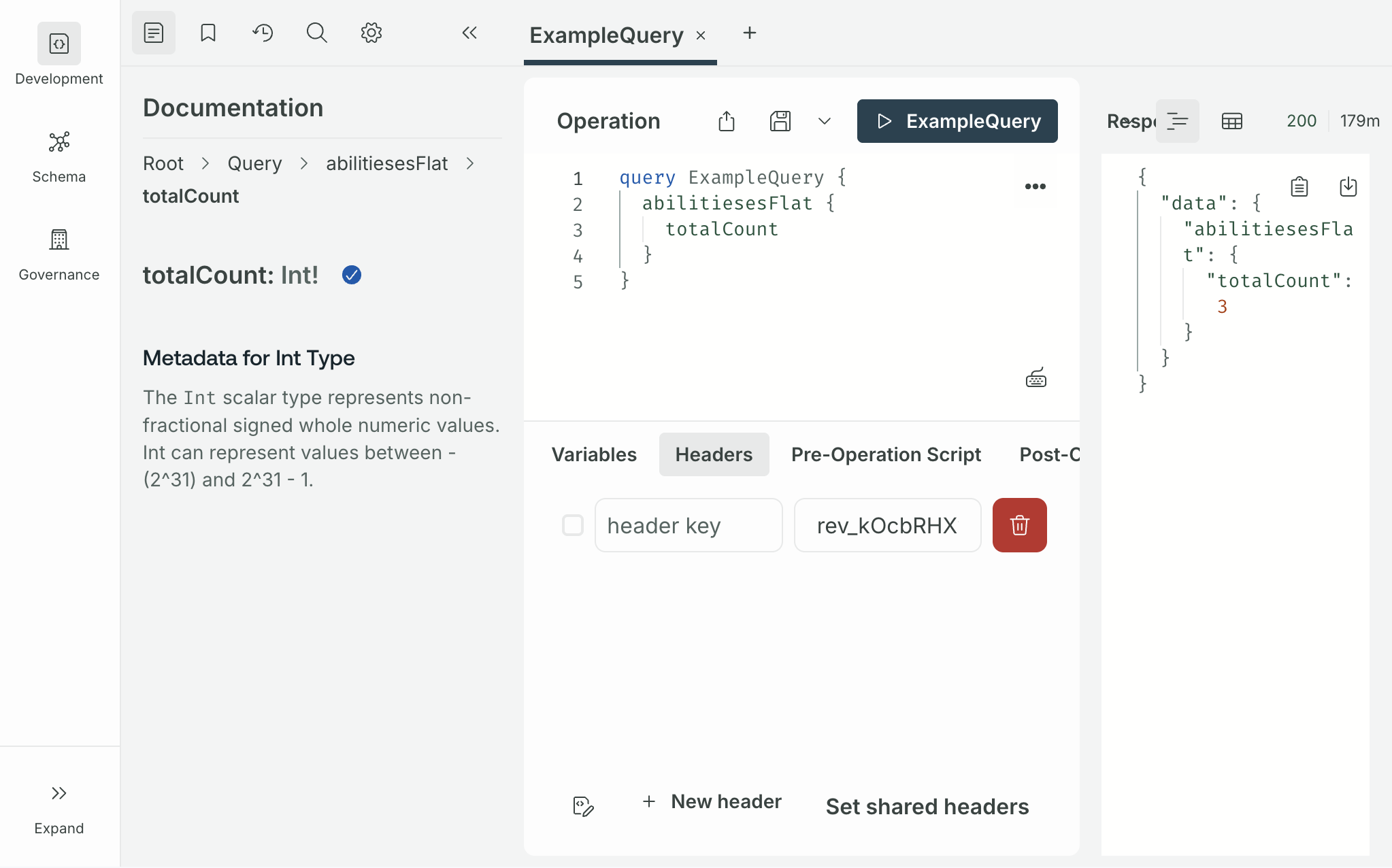
Using with Apollo Sandbox
For generated GraphQL endpoints:
- Open the Apollo Sandbox page for your endpoint
- In the Headers panel at the bottom, click "New header"
- Add:
- Header name:
X-Api-Key - Value:
rev_xxxxxxxxxxxxxxxxxxxx
- Header name:
- Run your queries — the header is sent automatically
Scoping
Keys can be restricted to specific resources:
| Scope | Description | Default |
|---|---|---|
| Organization | Limit to one org | All user's orgs (PAT) / required (service) |
| Projects | Limit to specific projects | All in org |
| Branches | Limit to specific branches | All branches |
| Tables | Limit to specific tables | All tables |
| Read-only | Block all mutations | false |
Branch scoping
- Exact branch names:
["master", "staging"] - Default branch shortcut:
["$default"]— always resolves to the project's root branch, regardless of its name
Example: Production read-only key for a frontend app
mutation {
  createServiceApiKey(data: {
    name: "Production frontend"
    organizationId: "myorg"
    permissions: {
      rules: [
        { action: "read", subject: ["Organization", "Project", "Branch", "Revision", "Table", "Row"] }
      ]
    }
    projectIds: ["my-project"]
    branchNames: ["$default"]
    readOnly: true
  }) {
    secret
    apiKey { id }
  }
}
Example: PAT for local CLI testing
mutation {
  createPersonalApiKey(data: {
    name: "CLI testing"
    expiresAt: "2026-05-01T00:00:00Z"
  }) {
    secret
    apiKey { id }
  }
}
Key Format
All keys start with rev_ followed by 22 random characters:
rev_V1StGXR8_Z5jdHi6B-myT
The rev_ prefix helps identify Revisium keys in logs and configs. The key type (personal or service) is determined by database lookup, not the prefix.
Key Management
Revoking Keys
mutation {
  revokeApiKey(id: "key-id-here") {
    id
    revokedAt
  }
}
Revoked keys return 401 immediately. The key record is preserved for audit trail.
In the Admin UI, click the revoke button next to any key in your API Keys list.
Rotating Keys
mutation {
  rotateApiKey(id: "key-id-here") {
    secret
    apiKey { id prefix }
  }
}
Creates a new key and revokes the old one atomically. You still need to update your integration with the new key — there is no grace period.
Expiration
| Type | Default | Configurable |
|---|---|---|
| Personal | 90 days | Yes, at creation |
| Service | 365 days | Yes, at creation |
Limits
| Type | Default limit | Env var |
|---|---|---|
| Personal keys per user | 10 | API_KEY_MAX_PER_USER |
| Service keys per org | 100 | API_KEY_MAX_SERVICE_PER_ORG |
Security Best Practices
- Store securely — use environment variables or secret managers, never commit keys to git
- Scope narrowly — restrict to specific org, project, branch when possible
- Set expiration — avoid indefinite keys, especially for PATs
- Use read-only when write access isn't needed
- Use service keys for CI/CD — not personal keys (PATs break when the person leaves)
- Rotate immediately if a key is leaked
- Review regularly — revoke keys that are no longer in use